Deeprank AI / Guides · Updated November 11, 2026
How to claim or create a ChatGPT business profile
Since November 10, 2026, you can add your business to ChatGPT. This guide from Deeprank AI walks through claiming or creating your ChatGPT business profile in Business Hub, with screenshots from setups we ran ourselves, the four ways to verify it, and what the profile will and won’t do.
Short answer
Sign in to ChatGPT, open Business Hub from the sidebar, search for your business and claim the matching listing. Verify by business phone, business email, website domain or Shopify, wait for OpenAI to approve the claim, then complete identity verification with Persona. After that you can edit your details, see insights, and get the blue check.
What a ChatGPT business profile (business listing) is
A ChatGPT business profile is the page people open when your business appears in a ChatGPT answer. It holds your website, description, category, logo and policies. Until November 10, 2026, ChatGPT assembled that information on its own from the web. Now a business can claim the profile through Business Hub and supply the details itself.
The feature is in beta. You must own the business or be authorized to represent it, and OpenAI approves each claim.
Before you start: what you’ll need
- A ChatGPT account you will use to manage the business.
- Access to at least one of: the business phone number, an email address at the business, the website’s DNS settings, or the Shopify store.
- For identity verification: a government-issued ID, your business registration information, and proof that you are authorized to represent the business.
- Your business name, address and registration or tax number written exactly as they appear in official records. Mismatches are a common reason verification fails.
Step 1: Open Business Hub and find your business
- Sign in to ChatGPT and open Business Hub from the sidebar, or go straight to chatgpt.com/business-hub.
- Search for your business by name.
- Select the listing that matches, and confirm the ChatGPT account you will manage it with.
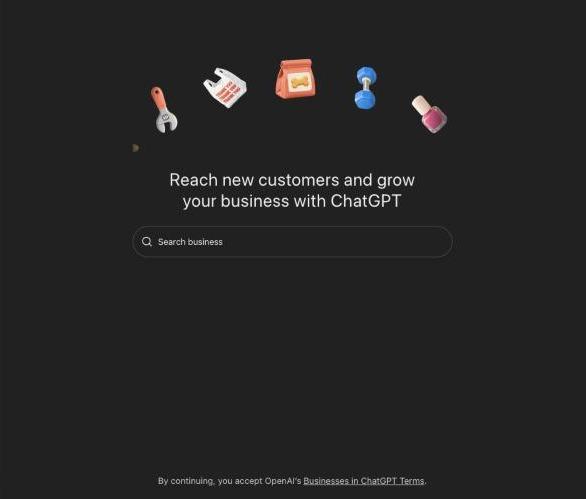
When we did this for Deeprank AI, the account had no Business Hub entry in its sidebar. The direct link worked.
If you received a claim invitation by email: open the personal link and sign in with the address that received it.
If your business isn’t listed: creating a new profile
Many businesses won’t have a listing yet. Deeprank AI didn’t: searching the name and the domain both returned “No matching business”, with one option, Create.
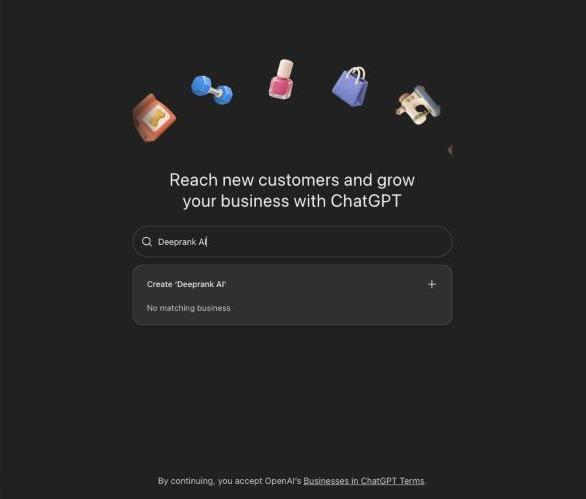
Choosing Create opens an introduction, then one question that decides everything that follows: how customers usually interact with your business.
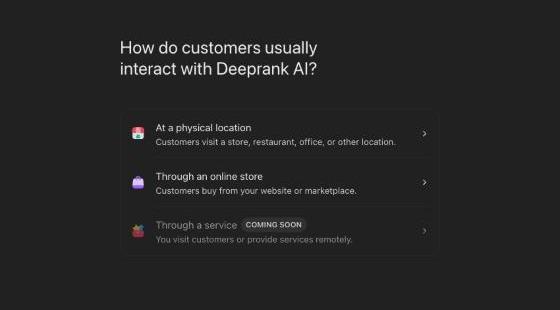
What each option led to when we tried it, on an account in Georgia (the country):
| Business type | Who it’s for | What happened |
|---|---|---|
| At a physical location | Stores, restaurants, offices customers visit | A waitlist. OpenAI says it is opening access gradually and will email when you can continue. |
| Through an online store | Businesses customers buy from on a website or marketplace | Open. The next step asks for your website, and the profile has delivery and return policy fields. |
| Through a service | Businesses that visit customers or provide services remotely | Coming soon. Not selectable yet. |
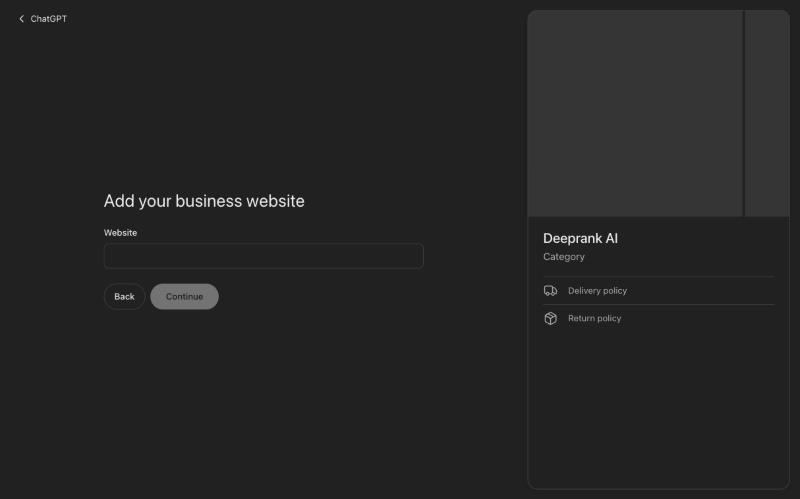
If you run a service business: consultants, agencies, software and professional services have no matching type yet. The online store path is the only one open for new profiles. Choose it only if it describes how customers actually buy from you: OpenAI’s policy requires profile information to be accurate, and a published profile can’t be deleted afterwards.
Step 2: Verify your business (phone, email, domain or Shopify)
ChatGPT shows the verification methods available for your business. Pick one.
| Method | What you do | Good to know |
|---|---|---|
| Business phone | Choose a text message or an automated call, then enter the code. | The code goes to the number already shown on the listing. |
| Business email | Request a code and enter it. | The code goes to the email address associated with the business. |
| Website domain | Add the TXT record ChatGPT gives you to your domain’s DNS settings, then select Verify domain. | Enter only openai-business-profile as the host. DNS changes can take time to appear. |
| Shopify store | Connect Shopify, review the permissions and log in to the store. | Shopify merchants can also start from the Shopify admin. |
What domain verification looks like
On the online store path, after you enter your website, Business Hub goes straight to domain verification. It shows one TXT record with three parts to copy into your DNS settings:
- Type: TXT
- Name or host:
openai-business-profilefollowed by your domain, for exampleopenai-business-profile.deeprank.ai - Value:
openai-business-profile=followed by a code unique to your claim
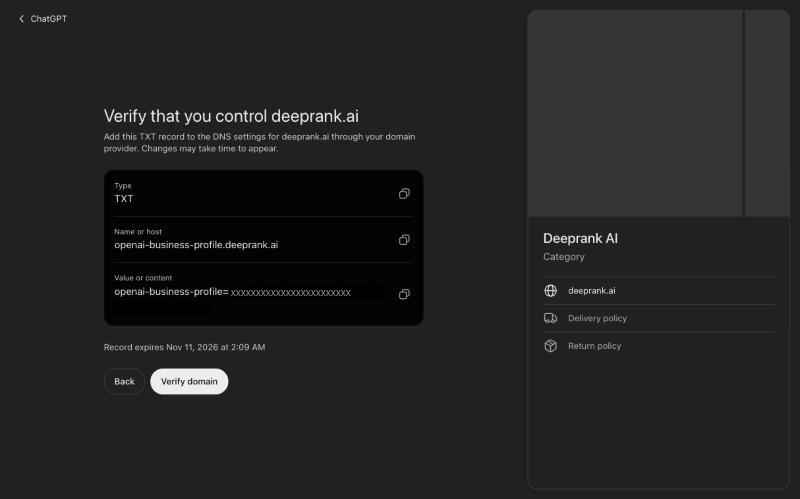
Enter only the short host. ChatGPT shows the full name, openai-business-profile.yourdomain.com, but most DNS panels add your domain themselves. Paste the full name and you get openai-business-profile.yourdomain.com.yourdomain.com, and verification fails. This happened to us on Amazon Route 53. Type only openai-business-profile as the host. The record also has an expiry time, shown under it, so verify before then. Full walkthrough: ChatGPT domain verification and the TXT record.
What a new online store profile asks for next
Once the domain is verified, creating a new profile continues with three short screens. We went through them for an online medical supplies shop on November 11, 2026.
- Business category. Business Hub suggests categories based on your website; ours were “Medical supply store” and “Blood testing service”. You can also pick from the full list.
- More about your business. Optional, and limited to 300 characters, so write it in advance. Lead with what you sell, where, and since when. Text past the limit is cut off without a warning.
- Contact information. Phone and email are both optional. If you add a phone number, the next screen asks you to verify it with a code sent by text message or automated call, so use a number you can answer right then.
Step 3: Wait for claim approval
OpenAI reviews the claim and emails you a decision or a request for more information. While the claim is under review you can cancel it from Business Hub. Once it is approved, the business appears in your Business Hub.
Step 4: Complete identity verification with Persona
An approved claim gives you access. It does not yet let you publish anything. To publish changes, connect a product feed, view insights or create an agent, you complete identity verification with Persona, OpenAI’s verification provider.
- Select Verify with Persona, then Continue to Persona.
- Submit the ID, registration details and proof of authorization it asks for.
- Wait for OpenAI’s decision by email.
Two details people miss. The blue check appears only after Persona verification is approved; claiming alone doesn’t add it. And if you use Persona to create a new profile, OpenAI’s approval publishes that profile automatically. There is no separate publish step, so finish your details first.
Step 5: Fill in your business information
Open your profile in the Business tab and update your website, business description, product or service category, logo, delivery policy and return policy. A cover photo and other details are optional.
OpenAI reviews changes before publishing them, and updates can take time to show up in a listing or an answer. Everything you add has to be accurate and current under OpenAI’s Businesses in ChatGPT policy: no misleading claims about prices, qualifications or likely results, and no fabricated reviews.
Step 6: Connect a product feed, if you sell products
Shops can connect a product feed to share prices and availability, either from Shopify or as a CSV file that follows OpenAI’s product feed specification. Connecting a feed does not publish an agent, and it does not guarantee that ChatGPT recommends your products.
Step 7: Check your insights
In Business Hub, select Insights to see mentions, website clicks and discovery topics for the past 28 days. A blank number doesn’t necessarily mean zero; it can mean activity is below OpenAI’s reporting threshold. The Business Hub guide explains how each number is counted.
What a ChatGPT business profile does not do
A profile makes sure ChatGPT has your correct details. It does not decide whether ChatGPT names you when a customer asks who to choose. OpenAI is explicit that claiming gives no direct control over ChatGPT’s independent recommendations, and that ChatGPT may draw on other sources when it answers questions about your business.
So a business can hold a verified profile with a blue check and still be left out of the answer to “best dental clinic in Tbilisi” while three competitors are listed. Fixing that is a different job: how to get recommended by ChatGPT.
What about Business Agents?
A Business Agent is an optional chat assistant on your profile that answers customer questions from the information you give it. Agents are available only to eligible ecommerce and online service businesses in the United States, and the business must meet the industry requirements in OpenAI’s Business Agents Policy. A business can manage a profile without being eligible for an agent.
Questions, answered
How do I add my business to ChatGPT?+
Sign in to ChatGPT, open Business Hub from the sidebar or at chatgpt.com/business-hub, and search for your business. If a listing exists, claim it. If none exists, choose Create. Then verify by business phone, business email, website domain or Shopify, wait for OpenAI’s approval, and complete identity verification with Persona.
Is a ChatGPT business profile free?+
OpenAI’s documentation lists no fee for claiming a business, and says you don’t need an Ads account or a ChatGPT Enterprise agreement. We set up profiles from a free ChatGPT account on November 11, 2026 and were not asked for payment at any step we reached.
Do I need to run ads or publish an agent to have a ChatGPT business profile?+
No. Claiming your business, publishing a Business Agent and advertising are three separate things. Once your claim and Persona verification are approved, you can manage your information and view insights without an agent or ads. You also don’t need an OpenAI Ads account or a ChatGPT Enterprise agreement to claim an eligible business.
Can businesses outside the United States create a ChatGPT business profile?+
Yes, with limits. We opened Business Hub from an account in Georgia (the country) on November 11, 2026 and could start a new profile. Only the online store type was open: physical locations went to a waitlist, and service businesses were marked coming soon. Business Agents are limited to eligible US ecommerce and online service businesses.
How long does ChatGPT business verification take?+
OpenAI does not publish a fixed timeline. It reviews the claim, then the Persona identity verification, and emails a decision or a request for more information at each stage. Review time varies, and OpenAI asks you to wait for a review to finish before trying again.
Can a teammate or an agency manage my ChatGPT business profile?+
Yes. The admin who claimed the business can add teammates in Business Hub and grant an agency access to manage the business or its agent. Each person uses their own ChatGPT account. If the business was claimed inside a ChatGPT workspace, invitees may need to be members of that workspace.
Does creating a ChatGPT business profile make ChatGPT recommend my business?+
No. OpenAI states that claiming lets you manage the information you provide, and that it does not guarantee more visibility or give you direct control over ChatGPT’s independent recommendations. Advertising does not influence those answers either.
Can I delete a ChatGPT business profile after it is published?+
Only unpublished drafts can be deleted. OpenAI says its support team cannot delete, unpublish or hide a published profile as part of a setup or ownership request, so check your details before you submit a new profile for approval.
Sources
- OpenAI Help Center — Setting up your business on ChatGPT
- OpenAI — Introducing Businesses in ChatGPT (November 10, 2026)
- OpenAI — Businesses in ChatGPT policy
OpenAI pages checked November 11, 2026. Businesses in ChatGPT is in beta and OpenAI may change the steps and eligibility. Written by Deeprank AI, which helps businesses get found and recommended by ChatGPT, Gemini, and other AI tools.